 +1 302 486 0000
 +61 2 5129 0955
 +44 7828 573520
 +44 7828 573520

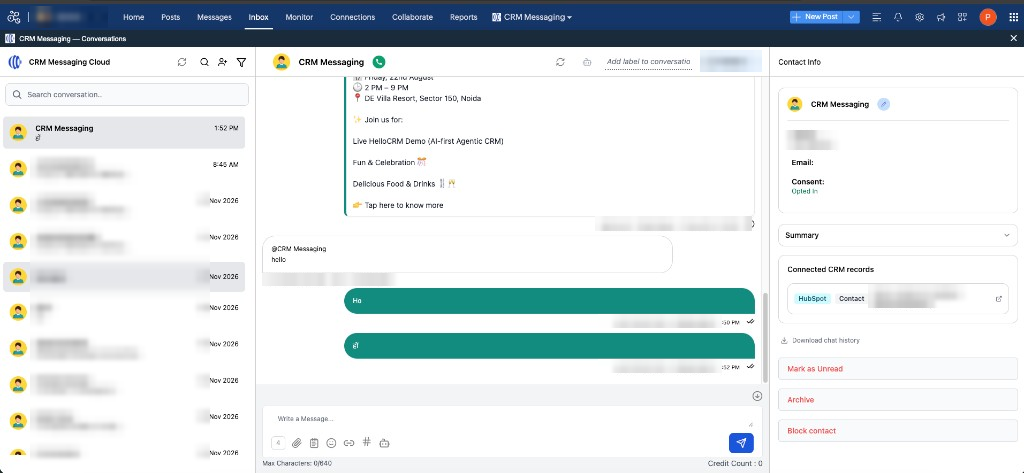
Use your existing CRM Messaging WhatsApp and SMS connection inside Zoho Social. A small browser extension adds a CRM Messaging menu at the end of the Zoho Social top bar, so your team can chat with customers, manage templates, run campaigns, and check analytics without leaving Zoho Social.
Zoho Social does not let you add a WhatsApp number that is already connected elsewhere. This integration keeps your number on CRM Messaging and brings the CRM Messaging screens into Zoho Social instead, so you do not need Zoho Social’s own WhatsApp connector.
What you get
| Menu option | What it opens |
|---|---|
| Conversations | Your CRM Messaging inbox: every WhatsApp and SMS chat, with replies, templates, attachments, labels, and assignment. |
| Templates | Create and manage WhatsApp and SMS templates. |
| Campaign Manager | SMS, WhatsApp, Email, and Voice campaigns, plus Audience Manager, Fields Manager, and Integrations Manager. |
| Analytics | The CRM Messaging dashboard with message and campaign stats. |
Screens open in a full-width panel below the Zoho Social top bar. Close it with ✕, or pick another option from the CRM Messaging menu. Messages are still logged to Zoho CRM as they are today.
Before you start
- Zoho CRM connected to CRM Messaging. Zoho Social uses the same connection.
- WhatsApp and/or SMS already working in CRM Messaging.
- Google Chrome or Microsoft Edge on a desktop or laptop. Safari, Firefox, and mobile browsers are not supported.
- Every person who will use it is the account owner or an accepted team member in CRM Messaging.
Important for admins: each team member must install the extension in their own browser. Installing it on your computer does not turn it on for anyone else.
Step 1 — Get the extension and connection token (admin)
1. Sign in to CRM Messaging as the account admin.
2. Go to Integration Gateway and click Zoho Social Connection.
3. If you see Not Connected, click Connect Zoho CRM first, then come back to this page.
4. You should see Ready for Zoho Social. Click Download the extension, and click Copy next to the Connection token.
5. Share the downloaded file and the token with your team. Treat the token like a password: share it only with your team.
Step 2 — Install the extension (each team member)
1. Unzip the downloaded file: double-click it on Mac, or right-click and choose Extract All on Windows. Keep the unzipped folder somewhere it won’t be deleted, because the browser loads the extension from that folder.
2. Open chrome://extensions in Chrome, or edge://extensions in Edge.
3. Turn on Developer mode. It’s at the top right in Chrome and in the left menu in Edge.
4. Click Load unpacked and choose the unzipped folder (the folder that contains manifest.json).
5. Pin the extension: click the puzzle-piece icon in the browser toolbar, then the pin next to CRM Messaging for Zoho Social.
Step 3 — Enter your token and email
The CRM Messaging settings page opens automatically after you install the extension.
1. Paste the Connection token from Step 1.
2. Enter your own CRM Messaging login email. Conversations are tied to the person signed in, and CRM Messaging checks that you are the account owner or an accepted team member before loading anything.
3. Click Save.
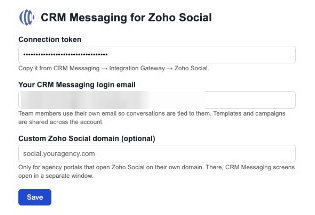
To change these later, click the CRM Messaging icon in the browser toolbar.
Step 4 — Open CRM Messaging in Zoho Social
1. Open or reload Zoho Social.
2. Click CRM Messaging ▾ at the end of the top bar, after Reports.
3. Choose Conversations, Templates, Campaign Manager, or Analytics.
Templates and campaigns are shared across the account. Conversations follow the same team-member access rules as the rest of CRM Messaging.
Supported Zoho Social data centers
The extension works on social.zoho.com, social.zoho.eu, social.zoho.in, social.zoho.com.au, social.zoho.jp, social.zoho.uk, social.zoho.sa, social.zoho.com.cn, and social.zohocloud.ca.
Agency portals on a custom domain (optional)
If your team opens Zoho Social on your own domain (for example social.youragency.com):
1. Click the CRM Messaging icon in the browser toolbar to open the settings.
2. Enter the domain in Custom Zoho Social domain and click Save.
3. Click Allow when the browser asks for permission to run on that domain.
On a custom domain, CRM Messaging screens open in a separate window instead of the panel. Clicking the same option again brings that window to the front.
Updating to a new version
Download the latest file from Integration Gateway → Zoho Social Connection. On the extensions page, click Remove on the old CRM Messaging extension, then repeat Step 2 and Step 3 with the new download.
Setup checklist
- ☐ Zoho CRM is connected to CRM Messaging
- ☐ Integration Gateway → Zoho Social Connection shows Ready for Zoho Social
- ☐ Extension downloaded and connection token copied
- ☐ Each team member is an accepted team member in CRM Messaging
- ☐ Each team member installed the extension in Chrome or Edge
- ☐ Each team member saved the token and their own login email
- ☐ Test: Zoho Social → CRM Messaging → Conversations opens your inbox
- ☐ Test: Campaign Manager and Templates load
Quick troubleshooting
| Issue | What to do |
|---|---|
| No CRM Messaging menu in Zoho Social | Reload Zoho Social. Check that the extension is turned on at chrome://extensions or edge://extensions and that you are on a supported Zoho Social address. If the top bar can’t be found, a blue CRM Messaging button appears at the top right instead. |
| “CRM Messaging is not set up in this browser yet” | Click Open settings, paste the connection token and your login email, and click Save. |
| “Not a team member” | Use the exact email you sign in to CRM Messaging with. If you are new, ask your admin to invite you under Team and accept the invitation first. |
| Token is not accepted | Copy the token again from Integration Gateway → Zoho Social Connection. If Zoho CRM was reconnected, the token may have changed. |
| Campaign Manager is blank | Remove the extension and load the latest download (Updating to a new version). Older versions can’t open campaigns inside Zoho Social. |
| The browser warns about developer mode extensions | This is expected for extensions loaded with Load unpacked. Keep the extension turned on. |
| Nothing opens on a custom domain | Add the domain in the extension settings and click Allow when asked. Screens open in a separate window. Reload the Zoho Social page and try again. |
| Safari, Firefox, or mobile | Not supported. Use Google Chrome or Microsoft Edge on a desktop or laptop. |
For help, contact CRM Messaging support or your account administrator.


